
Table of Contents
- How to Check Connectivity on Multiple Devices
- How to Verify Network Settings on Windows
- Restart Your Equipment
- How to Inspect Physical Connections
- Contact Your Internet Service Provider (ISP)
- Use Diagnostic Tools
- Frequently Asked Questions About Fibre Internet Problems
Key Takeaways
- Fibre internet connectivity problems can originate from several sources, including Wi-Fi interference, incorrect device settings, faulty network equipment, ISP service disruptions or damage to physical fibre infrastructure.
- Testing internet connectivity on multiple devices helps determine whether a problem affects an individual device or the wider home or business network.
- Restarting a Wi-Fi router can resolve certain temporary connectivity problems, but repeated disconnections or persistent loss of service may require further investigation.
- Physical fibre cables are sensitive to excessive bending, crushing and damage. Customers should avoid disconnecting or attempting to repair optical fibre connections themselves.
- Internet Service Providers (ISPs) generally handle customer-facing connectivity support, while fibre network operators such as Lightstruck manage faults affecting the physical network infrastructure they operate.
- Professional fibre technicians use specialised equipment, including optical power meters and Optical Time Domain Reflectometers (OTDRs), to identify signal loss and locate faults in fibre optic networks.
Having a fast and reliable fibre internet connection is essential in today’s digital age. However, if you need help with your fibre internet, it can be frustrating. In this blog, we will provide you with 6 tips to troubleshoot and resolve common fibre internet issues, ensuring you can enjoy a seamless online experience.
Wifi & Fibre Trouble Shooting Tips:
1. How to Check for Connectivity On Multiple Devices:
When troubleshooting fibre internet issues, it’s important to determine if the problem is specific to one device or if it affects all devices connected to your network. Checking for connectivity on multiple devices can help you identify the scope of the issue.
Start by connecting another device to your network and see if it can access the internet. If the second device can connect successfully, it suggests that the problem may be isolated to the original device. In this case, you can focus your troubleshooting efforts on that specific device, such as checking its network settings, restarting the device, or running network diagnostics.
On the other hand, if the second device also experiences connectivity issues, it indicates that the problem is more likely related to your network or internet service. In this case, you can restart your modem and router, check physical connections, and contact your internet service provider (ISP) for further assistance.
By checking for connectivity on multiple devices, you can narrow down the source of the problem and determine whether it’s device-specific or network-related. This information can be helpful when troubleshooting and seeking support from your ISP.
2. How to Verify Network Settings On Windows:
Ensure that your network adapter settings are correct. On Windows, you can check the network adapter settings under the Network and Sharing Center in the Control Panel. Make sure the adapter is using the correct gateway address and other settings.
To ensure that your network adapter settings are correct on Windows, you can follow these steps:
-
- Open Network and Sharing Center: Click on the Start button and search for “Network and Sharing Center”. Open the Network and Sharing Center from the search results.
- Access Network Adapter Settings: In the Network and Sharing Center, you will see a list of network connections. Click on “Change adapter settings” on the left-hand side of the window.
- Check Network Adapter Properties: In the Network Connections window, you will see a list of network adapters. Right-click on the network adapter you are using to connect to the internet (e.g., Wi-Fi or Ethernet) and select “Properties”.
- Verify IP Settings: In the Properties window, select “Internet Protocol Version 4 (TCP/IPv4)” and click on the “Properties” button. Ensure that the settings are set to “Obtain an IP address automatically” and “Obtain DNS server address automatically”. These settings allow your network adapter to automatically obtain the necessary IP address and DNS server information from your router.
- Check Advanced Settings: In the Properties window, you can also access the advanced settings of your network adapter. These settings may vary depending on the manufacturer and model of your network adapter. It’s generally recommended to keep the settings at their default values unless you have specific requirements or troubleshooting instructions from your ISP.
By checking and verifying the network adapter settings, you can ensure that your network adapter is configured correctly to connect to your fibre internet. This includes confirming that the adapter is using the correct gateway address and other settings.
Remember, the steps provided here are specific to Windows, and the exact steps may vary slightly depending on the version of Windows you are using. If you encounter any difficulties or need further assistance, you can refer to the official documentation provided by Microsoft or contact their support.
3. Restart Your Equipment:
Sometimes, a simple restart can resolve connectivity issues. Try restarting your modem, router, any other network equipment you have, or even the device you are using. Wait for a few minutes before turning them back on.
4. How to Inspect Physical Connections:
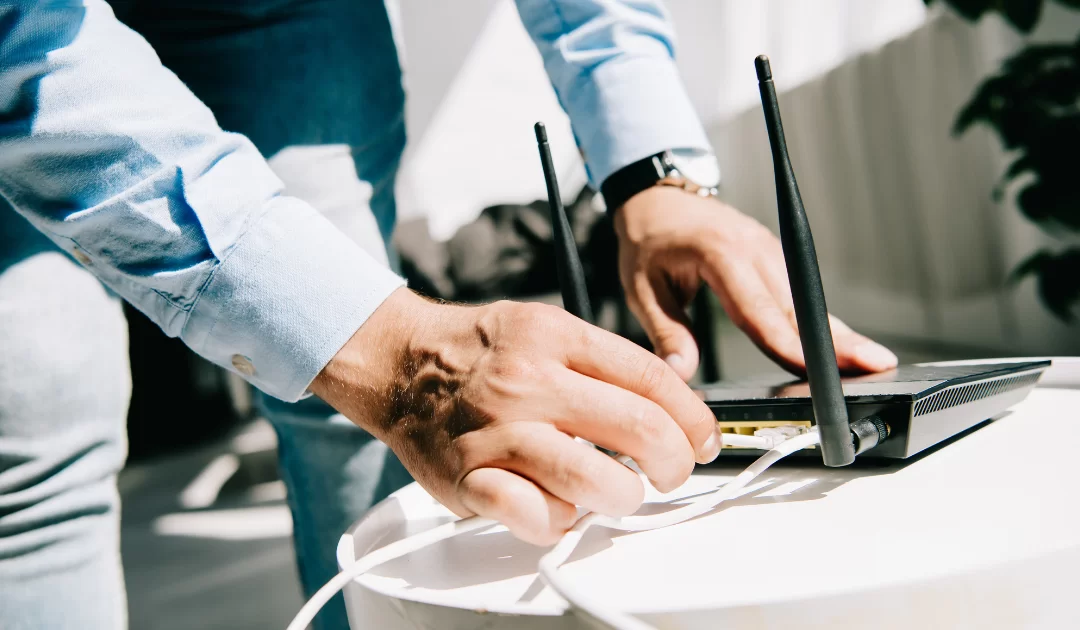
Check all the physical connections, including connectors, patch cables, and network equipment. Ensure that they are secure and properly seated. Inspect fibre optic cables for any visible signs of physical damage or improper bending. Sometimes the strangest thing might have happened, like a cat running through your cables and disconnecting a wire or two.
When troubleshooting fibre internet issues, it is crucial to inspect all physical connections, including connectors, patch cables, and network equipment. Here’s why this step is important:
-
- Secure and properly seated connections: Ensure that all connections are secure and properly seated. Loose or improperly connected cables can cause signal loss or intermittent connectivity issues.
- Visible signs of physical damage: Inspect fibre optic cables for any visible signs of physical damage or improper bending. Physical damage, such as cuts, breaks, or kinks in the cables, can significantly impact signal transmission and cause connectivity problems.
- Contamination and foreign objects: Check for any contamination or foreign objects on the connectors or cables. Dust, dirt, oil, or lint on the fibre end face can disrupt light transmission and affect performance. Even something as unexpected as a cat running through the cables and disconnecting a wire can cause issues.
By inspecting physical connections and addressing any issues promptly, you can ensure the proper functioning of your fibre optic network.
5. Contact Your Internet Service Provider (ISP):
If the issue persists, it’s recommended to reach out to your ISP for further assistance and troubleshooting. They can help diagnose and resolve any network-related problems.
6. Use Diagnostic Tools:
If you have the necessary tools, you can perform cable tests using equipment like Visual Fault Locators (VFL), Light Source and Power Meter (LSPM), or Optical Time Domain Reflectometers (OTDR) to identify faults in the fibre optic cable.
Troubleshooting fibre internet issues can be a straightforward process if you follow the right steps. By checking for connectivity on multiple devices, verifying network adapter settings, restarting equipment, inspecting physical connections, and seeking assistance from your ISP, you can effectively troubleshoot and resolve common fibre internet issues.
Frequently Asked Questions
1. Why is my fibre internet connected but not working?
A fibre connection may appear active while internet access is unavailable because of Wi-Fi problems, router configuration errors, ISP service interruptions or network infrastructure faults. First, check whether multiple devices are affected and test a wired Ethernet connection if possible. If the problem continues, inspect the status indicators on your router and Optical Network Terminal (ONT) without disconnecting the fibre cable. Contact your Internet Service Provider (ISP) for further assistance, as they can investigate service-related issues and escalate suspected physical network faults to the fibre network operator.
2. How can I tell whether my fibre internet problem is caused by Wi-Fi or the fibre network?
The simplest way to distinguish between Wi-Fi and fibre network problems is to compare wireless connectivity with a wired Ethernet connection. If internet access works normally through Ethernet but is slow or unreliable over Wi-Fi, the problem is likely related to wireless coverage, interference or router performance. If both wired and wireless connections fail, the cause may involve the router, ISP service or fibre infrastructure. Checking the ONT’s status indicators and contacting your ISP can help establish whether the underlying fibre connection is operating correctly.
3. What does a red LOS light on a fibre ONT mean?
A red LOS (Loss of Signal) indicator on a fibre Optical Network Terminal (ONT) generally means that the device is not receiving a usable optical signal from the fibre network. Possible causes include damaged fibre cabling, disconnected optical connections, infrastructure faults or interruptions elsewhere on the network. The exact meaning of the indicator depends on the ONT model. Customers should avoid opening the equipment, looking into optical connectors or attempting fibre repairs. Instead, report the issue to their ISP, which can coordinate further investigation with the relevant fibre network operator.
4. Who is responsible for fixing fibre internet faults in South Africa, the ISP or the fibre network operator?
In South Africa, Internet Service Providers (ISPs) and fibre network operators have different responsibilities when resolving connectivity problems. ISPs generally provide customer support, manage internet services and investigate account, router or service-related issues. Fibre network operators maintain the underlying physical infrastructure, including fibre optic cables and associated network equipment within their responsibility. When a problem involves physical network damage or optical signal failure, the ISP can escalate the fault to the network operator. Lightstruck operates fibre infrastructure that supports connectivity through its ISP partnerships.
5. How do fibre network technicians identify and repair damaged fibre optic cables?
Fibre network technicians identify damaged fibre optic cables using specialised testing equipment and network diagnostics. Optical power meters measure received signal levels, while Optical Time Domain Reflectometers (OTDRs) help locate faults, excessive signal loss and breaks along fibre cable routes. Once the affected section is identified, technicians may inspect connections, repair damaged components or splice replacement fibre sections using specialist equipment. The repaired connection is then tested to confirm that optical signal levels meet the network’s requirements. These procedures should be performed by qualified technicians rather than customers.